Source Link: https://help.lob.com/account-management/signing-into-lob
# Signing into Lob ## Sign in to your Lob dashboard ### Default login
### Single Sign-On (SSO) login
## Reset your password
## Set up Lob SSO with Okta
{% hint style="info" %}
Access via SSO is exclusive to Enterprise Edition customers. Upgrade to the appropriate [Print & Mail Edition](https://dashboard.lob.com/#/settings/editions) to gain access.
{% endhint %}
These instructions should also apply to configuring with other identity providers, such as OneLogin and Google IdP.
1. Create an application in Okta for Lob using this [guide](https://developer.okta.com/docs/guides/build-sso-integration/saml2/create-your-app/).
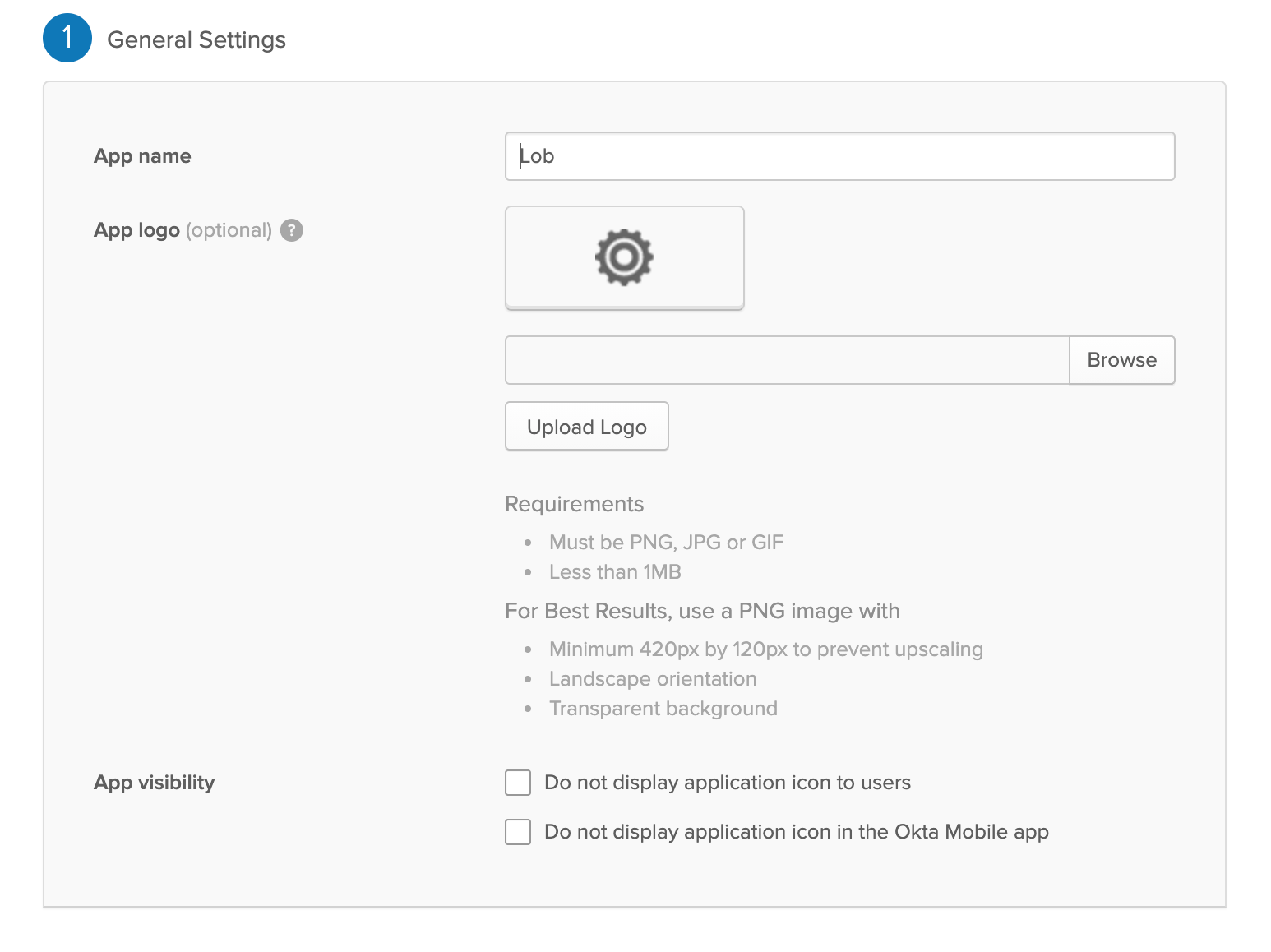
2. Name the application.\
\
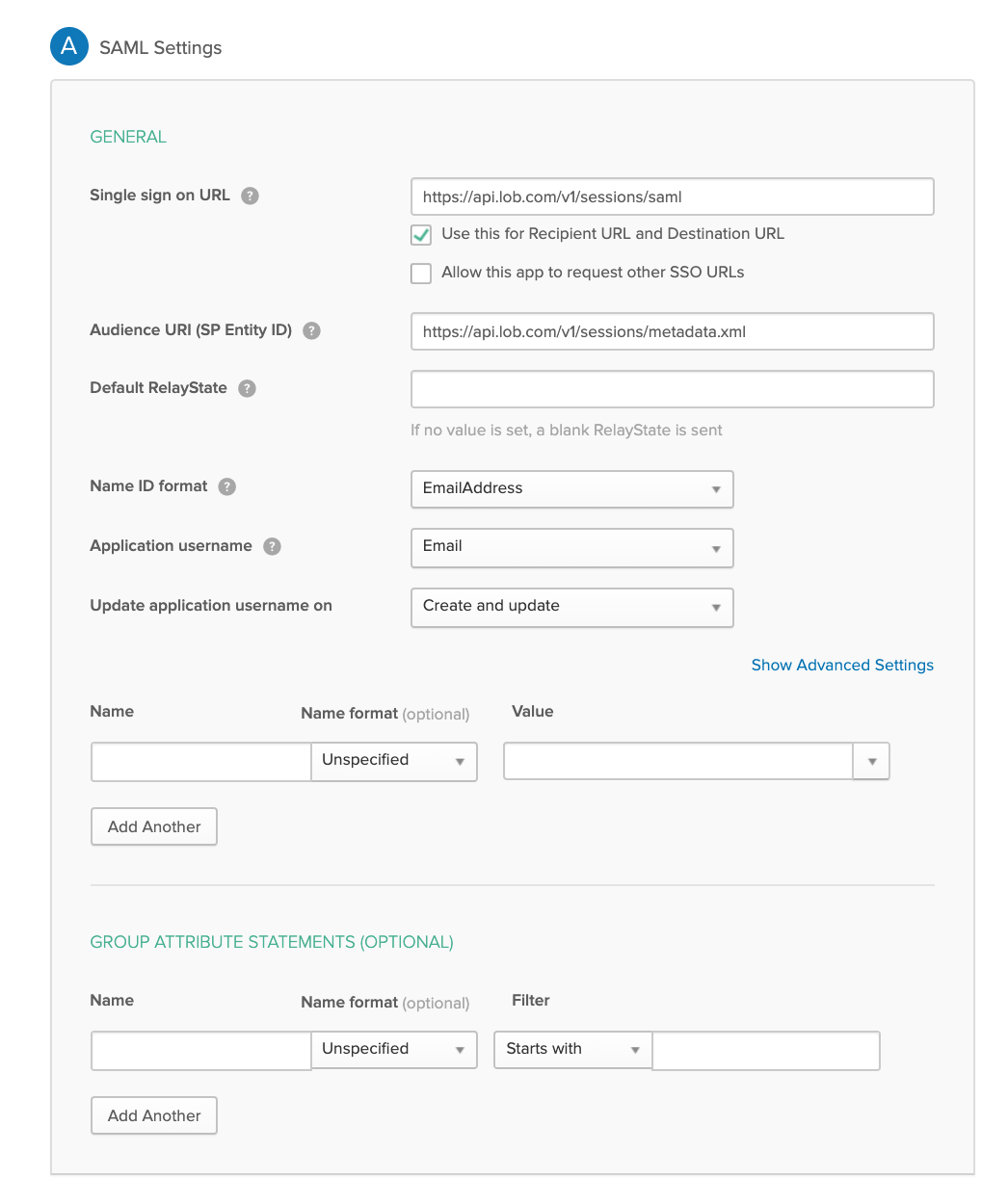
3. Add these SAML settings:
* For **Single sign on URL**, enter: https://api.lob.com/v1/sessions/saml
* Select **Use this for Recipient URL and Destination URL**
* For **Audience URI (SP Entity ID)**, enter: https://api.lob.com/v1/sessions/metadata.xml
* For **Name ID format**, choose **EmailAddress**.
* For **Application username**, choose **Email**.\
4. Your SAML settings should match the screenshot below\
\
Once your new application is created in Okta, you need to copy the SAML metadata generated from your IDP and paste it into Lob's dashboard.
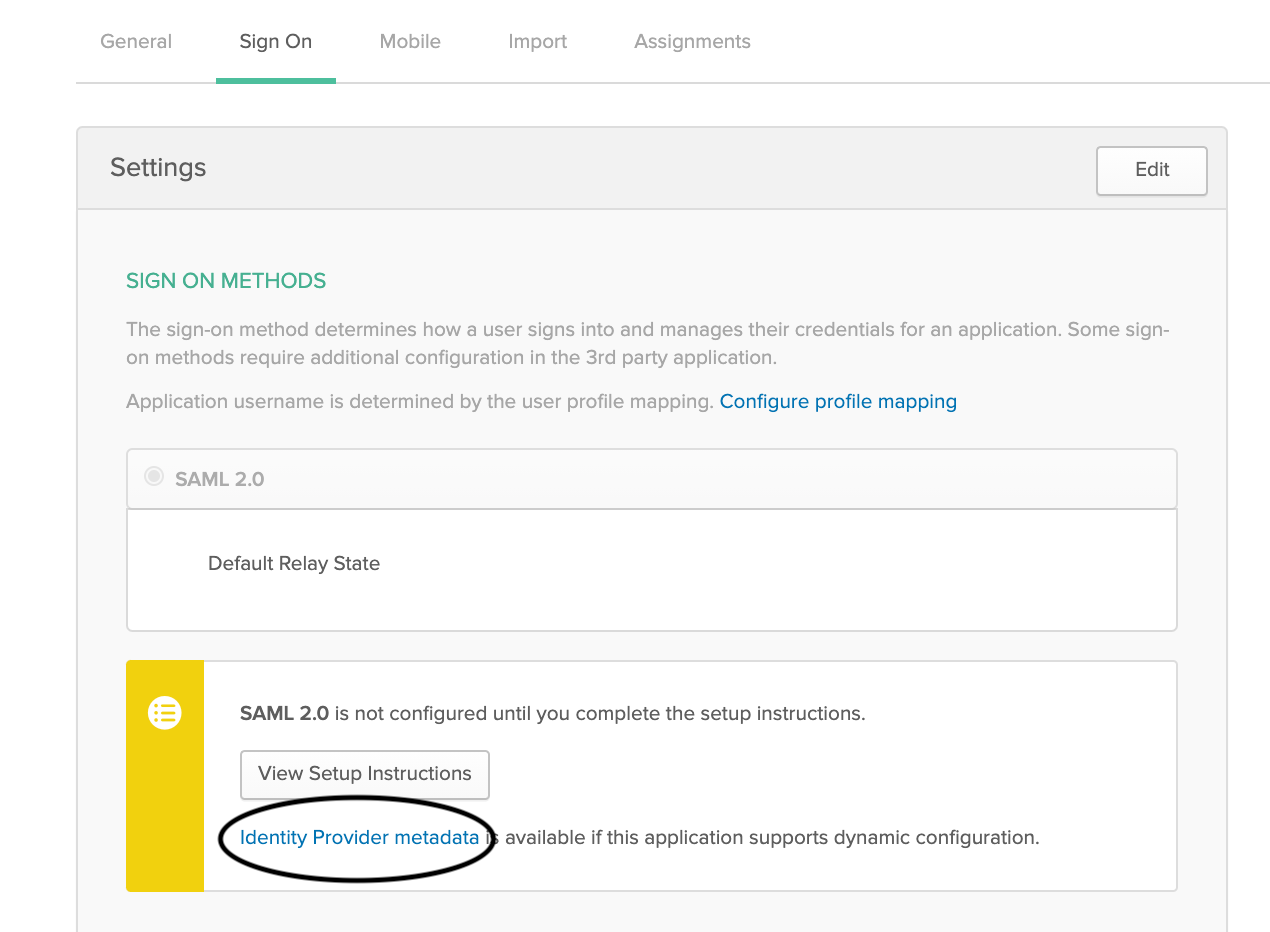
1. View your SAML IDP metadata in Okta by clicking the **Sign On** tab in the application.
2. Click the **Identity Provider metadata** link.\
\
\
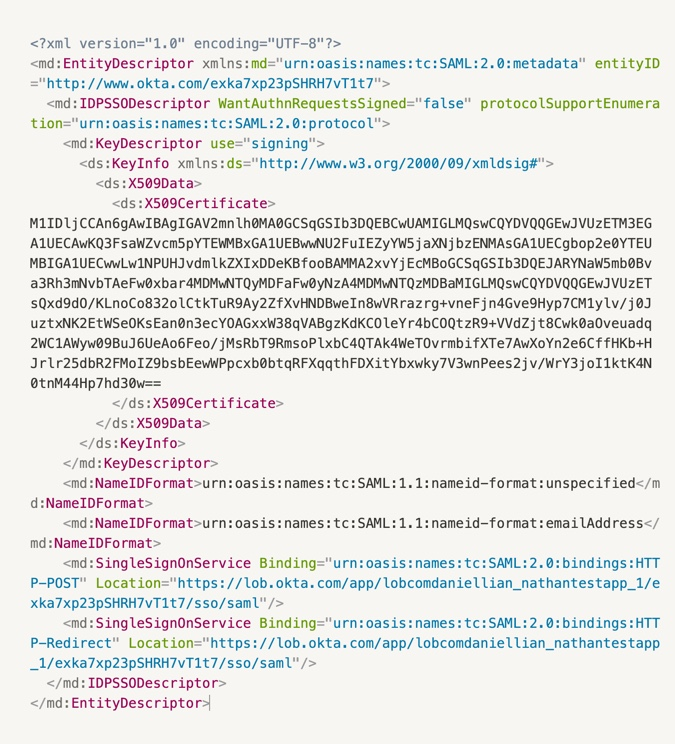
This opens a new web page containing the XML you need.\
\
3. Login to Lob's dashboard and hover on your name in the top right corned then click **Settings**.
4. Scroll down to Single Sign-on in the [Account tab](https://dashboard.lob.com/settings/account) and paste the metadata from your IDP, and then click **Save**.\

{% hint style="warning" %}
**Note:** Only Lob administrators will be able to see the Single Sign-on configuration in the Lob dashboard.
{% endhint %}
## Best practices
Even if your company has an active SSO integration with Lob, each individual user will still need to accept their company's invite before being able to log in using SSO. Otherwise they will be sent to the normal sign-in screen.
SSO is a hard cutover for your account, so once SSO is configured then ALL users for that account will only be able to sign in through SSO. If there is an issue with the IDP metadata, e.g. an incorrect SSO URL, then all users for that account will possibly be locked out. It is strongly recommended to test SSO by signing into Lob's dashboard through another session.
If you are locked out of your account because of incorrect IDP metadata, contact [support@lob.com](mailto:support@lob.com) to revert your account back to the normal login flow.
# Signing into Lob ## Sign in to your Lob dashboard ### Default login
| 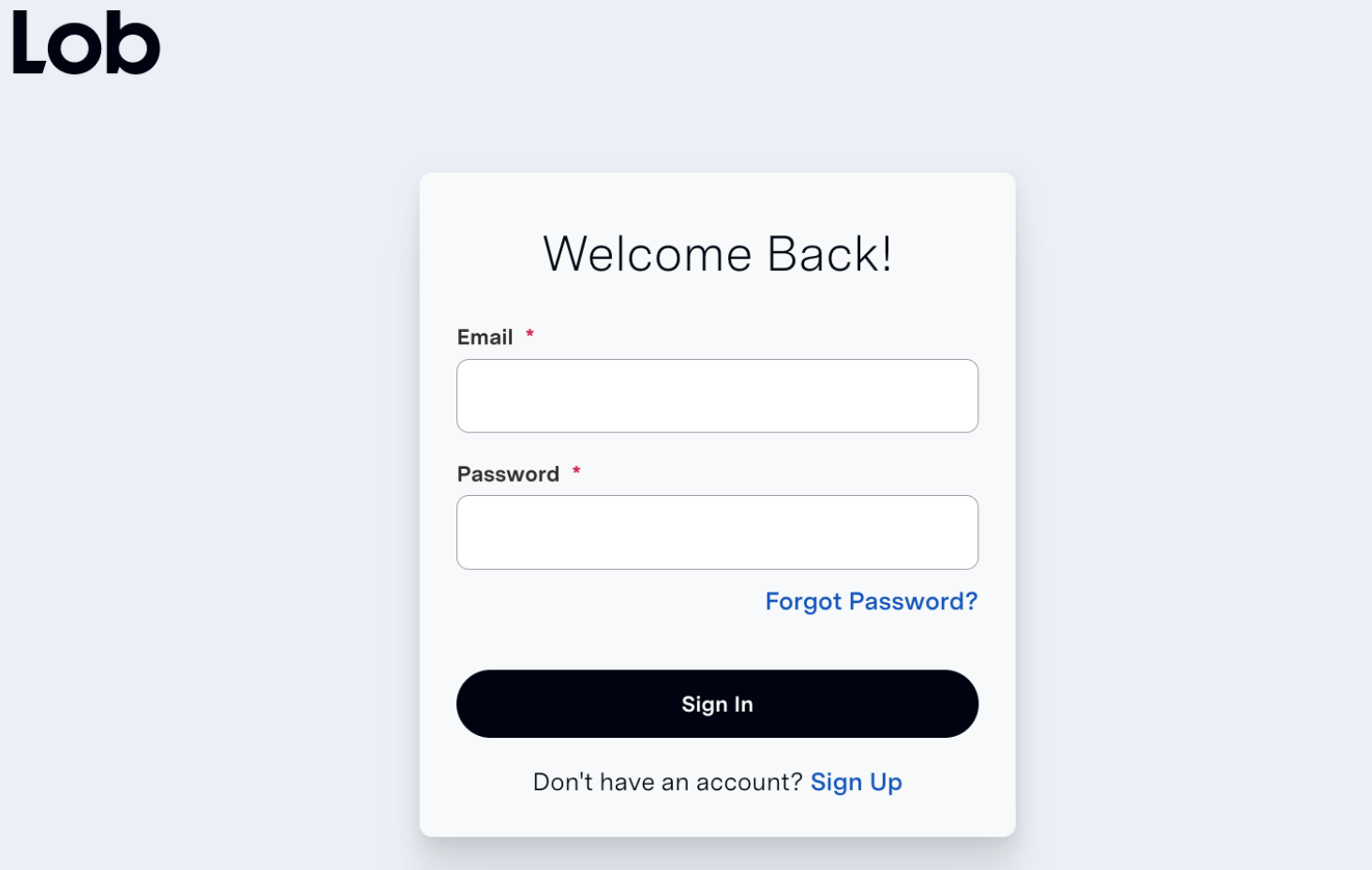 |
| If your organization has Single Sign-On (SSO) enabled, you will be redirected to a separate SSO login page after entering your email and password in the default login screen (as seen above). |  |
| Confirm your pre-populated company email, and click "Sign In With SSO" to log into your account. |
1. Click Log In on Lob.com. 2. Click Forgot Password? 3. Enter your Email Address then click Send Reset Link. |  |
4. Click Create New Password in the password reset email sent to you. 5. Enter a New Password then enter the same password in the Confirm New Password field. 6. Click Update. You password is now reset. |  |