Source Link: https://help.lob.com/print-and-mail/integrations/no-code-integrations/microsoft-dynamics-365 # Microsoft Dynamics 365
{% hint style="success" %}
This platform is in **closed beta.** reach out to your Account Manager to enable or [sign up here. ](https://docs.google.com/forms/d/e/1FAIpQLSe7oWjvB0MS8L-2K0p7mqm8Pm_27sjd17zqrEP7v3hyOWzaag/viewform)
{% endhint %}
## Overview
Microsoft Dynamics 365 (MD365) is an integrated suite of business applications that combines customer relationship management (CRM) and enterprise resource planning (ERP) capabilities. This platform helps organizations streamline their operations, improve customer engagement, and make data-driven decisions.
The integration of MD365 with Lob enables businesses to enhance their operational efficiency by triggering mailpiece creation populated by data within MD365. This ensures a cohesive and effective approach to business process management and customer interaction strategies.
## How to connect Lob with Microsoft Dynamics 365
### New Registration in Microsoft Azure
1. To begin, you'll need to [log into](https://portal.azure.com/) your associated Azure account as an admin. If you do not have an Azure account, you learn how to create one [here](https://docs.microsoft.com/en-us/office/developer-program/microsoft-365-developer-program).
2. Once in the Azure Portal, navigate to the App Registration page (you can use the search bar at the top to find it.)
3. Click New Registration at the Top
4. Set the Redirect URI to
```
https://integrations.hg.lob.com
```
5. Click on Register to create the application.
6. Select Manifest tab, in the manifest editor, set the `allowPublicClient` property to `true` and click on Save.
7. Select the API permissions tab and then go ahead and click "Add a permission".
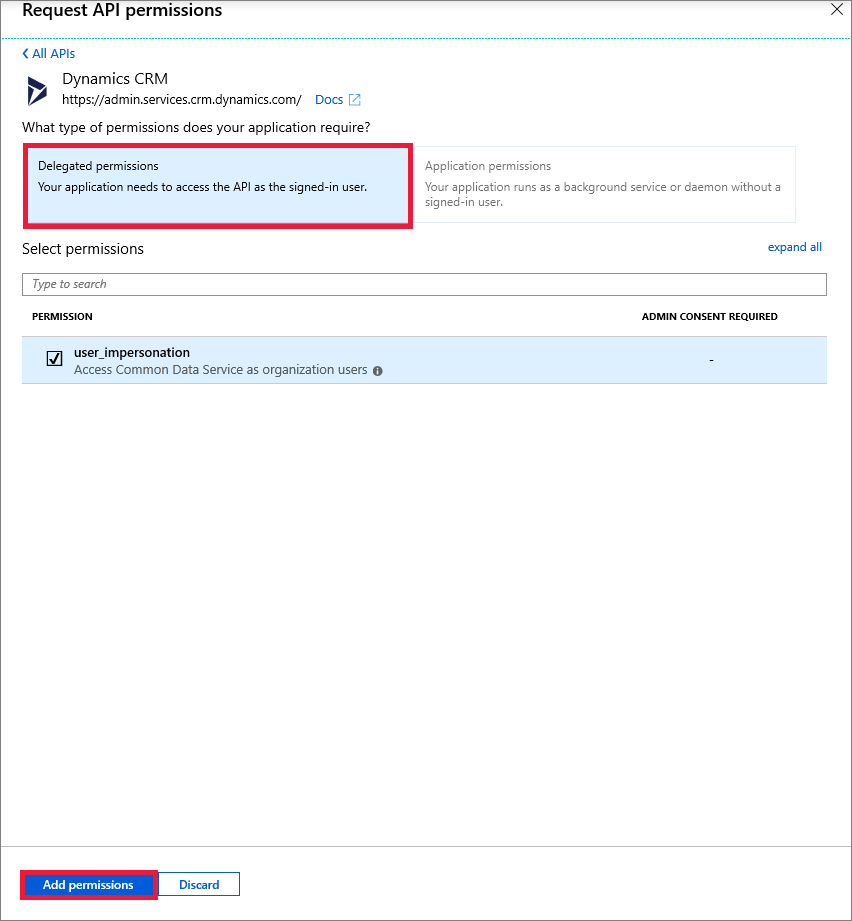
8. Search for and choose Dataverse under the APIs my organization uses tab. If Dataverse is not found, then search for Common Data Service.
9. Click on Delegated permissions, check the options, and click on Add permissions. This will wrap up registering your app in the Azure Active Directory!
### Connect to Lob
1. Within the Lob Dashboard, navigate to the Integrations page and click on “Microsoft Dynamics 365.”
2. Click the “Connect” button to begin.
Client ID
* **Client ID** is on the overview page
* A **Client Secret** can be made by navigating to the "Certificates and Secrets" tab on the left
* Click " + New Client Secret"
* Give it a description
* The **Value** is your Client Secret (NOTE: Save this value somewhere else just in case!)
OrganizationID and Environment ID
* The **Organization ID** and **Environment URL** can pulled by your admin in the "Power Platform admin center" page under "Environments."
* Click the environment you want to integrate with.
{% hint style="warning" %}
For Environment URL, **you will need to prepend with `https://`**
{% endhint %}
3. Once you have connected your Salesforce account to Lob, if successful the “Not Connected” label will show “Connected."
**Once you’ve successfully connected Lob to your MD365 account, you can** [**set up an Automated campaign**](https://help.lob.com/print-and-mail/integrations/no-code-integrations#then-you-can-set-up-an-automated-campaign) **from within the Campaigns flow.**